
Claude Code is not a chatbot that writes code snippets. It is an autonomous agent that lives in your terminal, reads your codebase, edits files, runs commands, searches the web, and orchestrates sub-agents. All while asking for permission before doing anything dangerous.
Most developers interact with it daily without understanding the machinery underneath. This guide breaks down exactly how Claude Code works, from the agentic loop that drives every interaction to the permission system that keeps it safe, the memory hierarchy that makes it context-aware, and the multi-agent architecture that lets it tackle complex problems in parallel.
Claude Code is Anthropic's autonomous AI coding agent that runs in your terminal and completes full engineering tasks end-to-end. It reads your codebase, edits files, runs shell commands, searches the web, and spawns sub-agents, all through an agentic loop that continues until the work is done. Its key advantage over autocomplete tools like Copilot or Cursor is autonomy: you hand it a goal, not a prompt per line, and it iterates on failures itself. The CLAUDE.md memory system and scoped permission model make it safe to run on real production codebases.
TL;DR
- Claude Code runs an agentic loop: a cycle of reading context, choosing tools, executing actions, and evaluating results until the task is complete
- It has access to file tools, shell execution, search, web access, and MCP servers for extending capabilities
- A 4-level memory system (CLAUDE.md files) persists project context across conversations
- The permission model ranges from asking approval for everything to fully autonomous operation
- Sub-agents enable parallel execution of independent tasks within a single conversation
- Hooks let you run custom shell commands before or after specific tool calls
The Agentic Loop: How Every Interaction Works
At its core, Claude Code runs a simple but powerful loop. Every time you send a message, the same cycle executes:
Step 1: Context Assembly
Before Claude Code even thinks about your request, it assembles context. This includes:
- Your current message
- The conversation history
- Your CLAUDE.md files (project instructions, coding standards, preferences)
- The current working directory and git status
- Any active MCP server connections
- System information (OS, shell, platform)
This context window is what Claude Code "sees" when deciding what to do. Everything it knows about your project comes from this assembled context.
Step 2: Analysis and Planning
Claude Code analyzes your request against the assembled context. For a simple request like "fix the typo in line 42," this step is fast. For complex requests like "refactor the authentication system to use JWT tokens," it involves breaking the task into sub-steps, identifying which files need to change, and determining the right order of operations.
Step 3: Tool Selection
This is where it gets interesting. Claude Code does not just generate text. It selects from a toolkit of actions:
| Tool Category | Tools | What They Do |
|---|---|---|
| File Operations | Read, Edit, Write, Glob | Read files, make targeted edits, create files, find files by pattern |
| Shell | Bash | Execute any terminal command |
| Search | Grep | Search file contents with regex |
| Web | WebFetch, WebSearch | Fetch URLs, search the internet |
| Orchestration | Agent, Task | Launch sub-agents, manage task lists |
| Extensions | MCP Tools | Any custom tool via Model Context Protocol |
The tool selection is not random. Claude Code evaluates what it needs based on the task, and picks the minimum set of tools required. Need to find a function definition? It uses Grep, not a full codebase scan. Need to change one line? It uses Edit, not Write (which would overwrite the entire file).
Step 4: Tool Execution
The selected tool runs. This is a real action, a file is actually read, a command actually executes, a search actually runs. The results come back as structured data that Claude Code can reason about.
Step 5: Result Evaluation
Claude Code evaluates the tool result. Did the file read succeed? Did the test pass? Did the grep find what it was looking for? Based on this evaluation, it decides whether to:
- Continue with the next step of the plan
- Adjust the approach based on unexpected results
- Use another tool to get more information
- Report back to the user with findings or completed work
Step 6: Loop or Respond
If the task is complete, Claude Code responds with a summary. If not, it loops back to Step 3 and selects the next tool. This loop continues until the task is done, it hits a permission wall, or it needs user input.
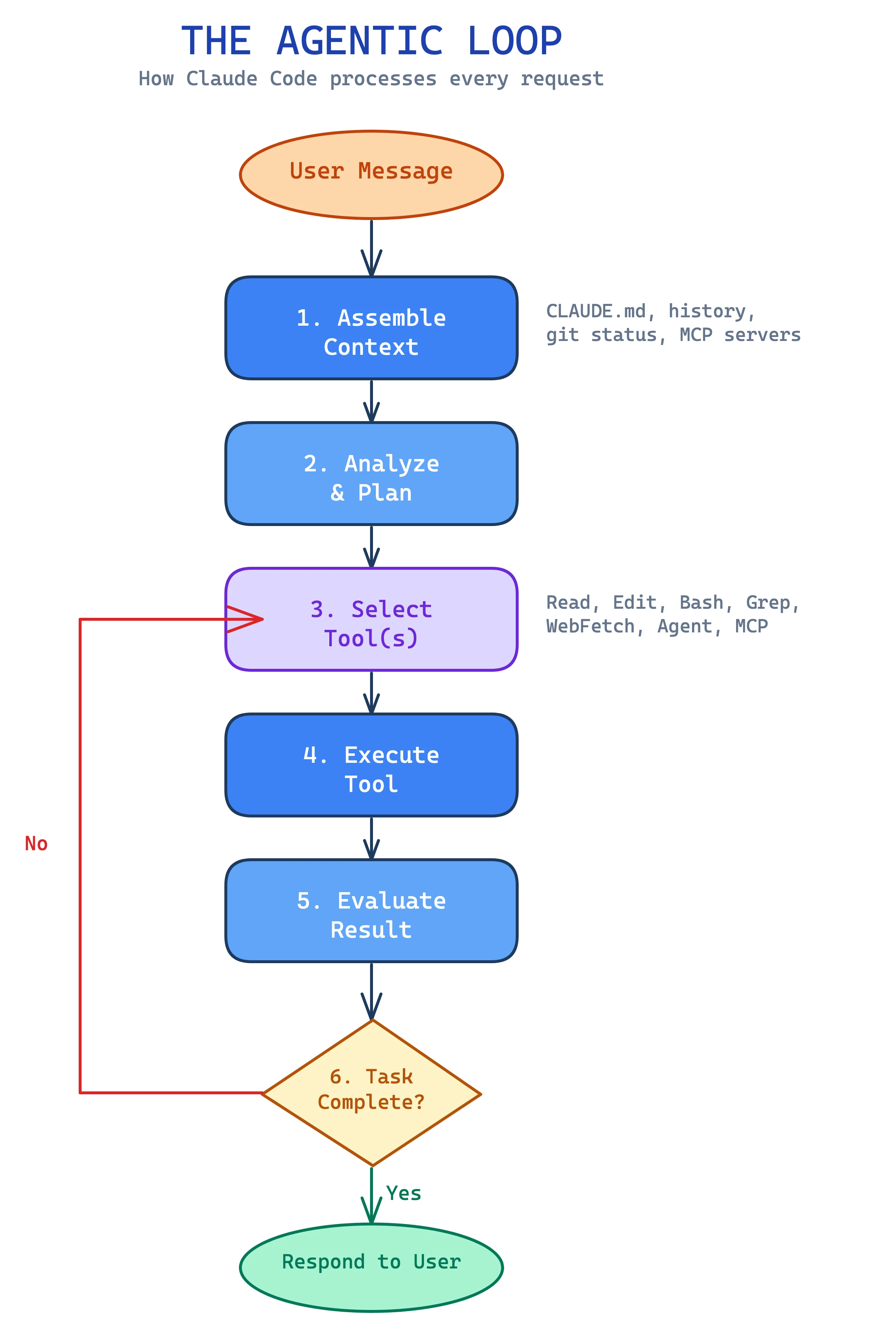
This loop is the same whether you are asking Claude Code to fix a one-line bug or refactor an entire module. The difference is just how many iterations the loop runs.
The Tool System: What Claude Code Can Actually Do
Claude Code's power comes from its tools. Each tool is purpose-built for a specific type of operation.
File Tools
Read is the most used tool. Before Claude Code edits any file, it reads it first. This is enforced. The Edit tool will refuse to work on a file that has not been read in the current conversation. This prevents blind edits.
Edit performs surgical string replacements. You give it the exact old text and the new text. If the old text is not unique in the file (appears more than once), the edit fails. This forces Claude Code to provide more context to make the replacement unambiguous.
Write creates new files or completely rewrites existing ones. It is used sparingly because Edit is almost always the better choice for modifications.
Glob finds files by pattern matching. Need all TypeScript files in a directory? **/*.tsx handles it. It returns results sorted by modification time, making it easy to find recently changed files.
Shell Execution
The Bash tool runs any terminal command. This is where things get powerful, and where the permission system becomes critical. Claude Code can:
- Run tests (
npm test,pytest) - Install packages (
npm install,pip install) - Execute build steps (
npm run build) - Run git commands (
git status,git diff) - Start dev servers
- Execute any CLI tool available on your system
Commands run in a persistent working directory, so cd operations carry over between calls. There is a default 2-minute timeout, extendable up to 10 minutes for long-running operations.
Search Tools
Grep is built on ripgrep, giving Claude Code fast regex search across your entire codebase. It supports multiple output modes:
files_with_matches: just file paths (default, fast)content: matching lines with contextcount: match counts per file
It can filter by file type (type: "js") or glob pattern (glob: "*.tsx"), and supports multiline matching for patterns that span lines.
Web Tools
WebFetch retrieves content from URLs. Claude Code uses this to read documentation, check API responses, or fetch reference material you point it to.
WebSearch performs internet searches. When Claude Code needs information that is not in your codebase or its training data, it can search the web and bring results back into the conversation.
MCP Tools: The Extension System
This is where Claude Code becomes infinitely extensible. Model Context Protocol (MCP) is an open standard that lets you connect Claude Code to any external tool or service.
MCP servers can be added via the CLI:
Or configured in .mcp.json:
MCP supports three transport types:
- stdio: local process communication (most common)
- SSE: Server-Sent Events over HTTP
- HTTP: streamable HTTP connections
Once connected, MCP tools appear alongside Claude Code's built-in tools. You can have an MCP server that connects to your database, your CRM, your CI/CD pipeline, or any other system with an API. Claude Code treats MCP tools like native capabilities, which is why it's become a core tool in modern custom AI agent development.
Memory and Context: How Claude Code Remembers
Claude Code has no persistent memory between conversations by default. Every new conversation starts fresh. But the CLAUDE.md system solves this by creating persistent project context that loads automatically.
The 4-Level Hierarchy
CLAUDE.md files exist at four levels, loaded in order of priority:
| Level | Location | Scope | Who Controls |
|---|---|---|---|
| Enterprise/Managed | Managed settings | Organization-wide | IT/Admin |
| User | ~/.claude/CLAUDE.md |
All your projects | You |
| Project | ./CLAUDE.md (repo root) |
This project | Team (committed to git) |
| Local | ./CLAUDE.local.md |
This project, your machine | You (gitignored) |
Each level can override the one above it. Your personal preferences in ~/.claude/CLAUDE.md apply everywhere. Project-specific rules in ./CLAUDE.md override personal defaults for that project. Local overrides in ./CLAUDE.local.md let you customize without affecting teammates.
What Belongs in CLAUDE.md
The best CLAUDE.md files contain:
- Coding standards: formatting rules, naming conventions, import ordering
- Architecture decisions: why certain patterns are used, what to avoid
- Common commands: how to build, test, lint, deploy
- Project-specific context: what the project does, key abstractions, gotchas
- Tool preferences: which testing framework to use, preferred libraries
What does not belong: information that can be derived by reading the code, git history, or existing documentation.
Path-Scoped Rules
For monorepos or projects with different conventions in different directories, CLAUDE.md supports path-scoped rules via a rules/ subdirectory:
These rules load contextually based on what files Claude Code is working with.
The @include Directive
CLAUDE.md files can include other files:
This keeps your CLAUDE.md lean while pulling in detailed documentation when needed.
The Permission System: Safety Without Friction
Claude Code's permission system is what makes it practical for real work. You need an agent that can execute shell commands and edit files, but you also need guardrails.
Six Permission Modes
| Mode | Behavior | Use Case |
|---|---|---|
| Default | Asks before writes, commands, and MCP tools | Daily development |
| Accept Edits | Auto-approves file edits, asks for commands | Trusted refactoring |
| Plan Mode | Read-only, cannot make changes | Code review, exploration |
| Bypass Permissions | Requires shift-enter to confirm once | Fast iteration |
| Don't Ask | Requires explicit deny list | Experienced users |
| Auto (yolo) | No confirmations | CI/CD, scripts, testing |
Most developers use Default mode and approve actions as they come. For CI/CD pipelines and non-interactive scripts, Auto mode lets Claude Code run without human intervention.
Permission Rules
You can configure granular rules that pre-approve or block specific tools:
Rules support glob-style wildcards. Bash(npm test*) approves any bash command starting with "npm test". Bash(rm -rf*) blocks any delete command. The deny list always wins over allow.
Compound Command Evaluation
Claude Code evaluates compound bash commands (using &&, ||, ;, or pipes) by checking each sub-command against the rules. If any part of a compound command would be denied, the entire command is blocked. This prevents bypassing deny rules by chaining approved and denied commands together.
Hooks: Automating Around Claude Code
Hooks let you run custom commands before or after Claude Code's tool calls. They are not tools Claude Code chooses to use. They are automations you configure that fire automatically.
Hook Events
There are 24+ hook events covering the full lifecycle:
- PreToolUse: runs before a tool executes (can block it)
- PostToolUse: runs after a tool completes
- Notification: when Claude Code wants to notify you
- Stop: when Claude Code finishes a turn
- SubagentStop: when a sub-agent completes
Practical Hook Examples
Auto-format after every file edit:
Run linting after code changes:
Block certain file modifications:
Exit code 2 in a PreToolUse hook blocks the tool from executing. This gives you programmatic control over what Claude Code can and cannot do, beyond the built-in permission system.
Multi-Agent Workflows: Parallel Execution
One of Claude Code's most powerful features is its ability to spawn sub-agents. These are independent Claude instances that run with their own context, tools, and task scope.
Why Sub-Agents?
The primary Claude Code instance has a finite context window. Complex tasks that require reading many files, running multiple searches, or exploring different approaches can fill that window quickly. Sub-agents solve this by:
- Isolating context: each sub-agent has its own context window
- Enabling parallelism: independent tasks run simultaneously
- Protecting the main thread: exploratory work does not pollute the primary conversation
How They Work
The Agent tool launches a sub-agent with a specific task:
Agent: "Search the codebase for all usages of the deprecated authentication middleware and list the files that need updating"
The sub-agent runs independently, using its own tool calls and reasoning. When it completes, it returns a single result message to the parent. The parent never sees the sub-agent's intermediate steps. Only the final output.
The Task Tool
For tracking multiple work items, the Task tool creates and manages a todo list:
Tasks appear in Claude Code's output, giving you visibility into progress on multi-step work.
Foreground vs Background
Sub-agents can run in two modes:
- Foreground (default): Claude Code waits for the result before continuing. Use when the result informs the next step.
- Background: Claude Code continues working while the sub-agent runs. Use when tasks are truly independent.
Git Worktrees for Isolation
For sub-agents that modify files, Claude Code can use git worktrees to create an isolated copy of the repository:
The sub-agent works in a temporary branch. If it makes changes, you get the branch name and path. If it makes no changes, the worktree is automatically cleaned up. This prevents sub-agents from interfering with each other or with your working directory.
Skills: Reusable Workflows
Skills are packaged instructions that Claude Code can invoke on demand. Unlike CLAUDE.md (which loads automatically), skills load only when triggered.
SKILL.md Structure
A skill is defined by a SKILL.md file:
Skills can include argument substitution ($ARGUMENTS), inline shell commands for dynamic context, and path-based activation rules.
When to Use Skills vs CLAUDE.md
| Use Case | CLAUDE.md | Skills |
|---|---|---|
| Always-on coding standards | ✓ | |
| On-demand deployment workflow | ✓ | |
| Project architecture context | ✓ | |
| Complex refactoring playbook | ✓ | |
| Test running conventions | ✓ | |
| Database migration procedure | ✓ |
CLAUDE.md is for context that should always be present. Skills are for workflows that are invoked intentionally.
Settings and Configuration
Claude Code's behavior is controlled by a JSON settings hierarchy at four scopes:
- Enterprise: managed by organization admins
- User:
~/.claude/settings.json - Project:
.claude/settings.json(committed to git) - Local:
.claude/settings.local.json(gitignored)
Settings cascade with higher specificity winning. The full settings surface includes:
- Model selection: which Claude model to use
- Permission rules: allow/deny lists for tools
- Hooks: pre/post tool execution commands
- Environment variables: injected into tool execution
- MCP servers: external tool connections
- Resource limits: token budgets, timeout durations
Environment Variables
Key environment variables for configuration:
Session Management: Picking Up Where You Left Off
Every Claude Code conversation is stored locally and can be resumed. This means you can:
- Close your terminal and come back later
- Continue a conversation from a different terminal window
- Resume after a crash or disconnect
Conversation history persists on disk. When you resume, Claude Code reloads the full context, your messages, tool results, and the state of the conversation. Combined with CLAUDE.md files, this means project context survives across sessions even without explicit memory.
Non-Interactive Mode: Claude Code in Scripts and CI/CD
Claude Code is not just an interactive tool. The -p flag runs it as a one-shot command:
Output formats include plain text, JSON (structured data with metadata), and streaming JSON (for real-time processing). This makes Claude Code composable, you can pipe its output to other tools, parse it programmatically, or integrate it into existing CI/CD pipelines.
The SDK: Building on Top of Claude Code
For teams building custom tooling, Claude Code exposes a stdin/stdout control protocol. This lets you:
- Send messages programmatically
- Receive streaming responses
- Control permissions via API
- Manage sessions from external applications
The protocol uses JSON messages over stdin/stdout:
This protocol powers the VS Code extension, JetBrains plugin, and any custom integration you want to build.
Putting It All Together: A Real-World Example
Here is what happens when you type "add pagination to the blog listing page" in Claude Code:
- Context loads: CLAUDE.md files, git status, conversation history
- Analysis: Claude Code identifies this as a feature addition requiring file exploration, code changes, and likely testing
- Exploration phase (2-3 tool calls):
Glob("**/blog/**")finds blog-related filesReadopens the blog listing componentGrep("pagination|page")checks for existing pagination logic
- Planning: based on what it found, it plans the changes: add a pagination component, modify the data fetching, update the route to accept a page parameter
- Implementation phase (4-6 tool calls):
Editmodifies the data fetching logicWritecreates a new Pagination componentEditupdates the blog listing to use paginationEditupdates the route handler
- Verification (1-2 tool calls):
Bash("npm run build")checks for compilation errorsBash("npm test")runs the test suite
- Response: summarizes what was done, lists the files changed
The entire interaction takes 30-60 seconds. The agentic loop ran 8-12 iterations. You approved 2-3 permission prompts (for the file edits and bash commands). The result is working code committed to your project.
Best Practices for Working with Claude Code
After using Claude Code extensively for production work, these patterns consistently produce the best results:
Write a Good CLAUDE.md
The single highest-leverage thing you can do. A well-written CLAUDE.md with your coding standards, common commands, and project context dramatically reduces the number of iterations Claude Code needs. Run /init on any new project to generate a starting point.
Start Specific, Not Broad
"Fix the authentication bug where users get logged out after 15 minutes" is better than "fix auth." Claude Code works best when it knows the problem clearly and can focus its tool usage.
Use Permission Rules Liberally
Pre-approve safe operations (reads, tests, linting) in your settings file. This eliminates friction for the most common tool calls while keeping dangerous operations gated.
Leverage Sub-Agents for Research
When you need to understand a codebase before making changes, launch an Explore sub-agent first. It does the research in its own context window, returns a summary, and your main conversation stays clean.
Let It Run Tests
Claude Code is remarkably good at running tests, reading failures, and fixing issues iteratively. Do not interrupt the loop when it is debugging. Let it iterate through the red-green cycle.
What's Next
Claude Code is evolving rapidly. Recent additions include hooks, skills, the SDK protocol, and expanded MCP support. The trajectory is clear: more autonomy, more extensibility, and tighter integration with development workflows.
For teams and agencies building with AI, understanding how Claude Code works under the hood is not optional. It is the difference between using it as a fancy autocomplete and leveraging it as a genuine force multiplier for business process automation.
The agentic loop, tool system, memory hierarchy, and permission model are not implementation details. They are the architecture that determines what Claude Code can do for your projects. Understanding them means you can configure it correctly, write better CLAUDE.md files, design effective hooks, and build custom integrations that fit your workflow.
Start with /init on your next project. Write a CLAUDE.md that captures your standards. Set up permission rules for your common commands. And let the agentic loop do what it does best, iterate until the job is done.