TL;DR
- The AI Agent node in n8n lets you build agents visually, without writing LangChain code
- An agent needs three things: a model, memory, and tools
- We build a Smart Email Triage Agent in this tutorial that reads incoming Gmail, classifies intent, and routes each email to the right follow-up workflow
- The same pattern works for customer support, lead qualification, and internal knowledge retrieval
- Total build time: under an hour on self-hosted n8n
If you want to ship an AI agent this week and you already use n8n for workflows, this is the fastest path. No Python, no custom framework, no DevOps. Just drag, drop, and prompt.
What Is an n8n AI Agent?
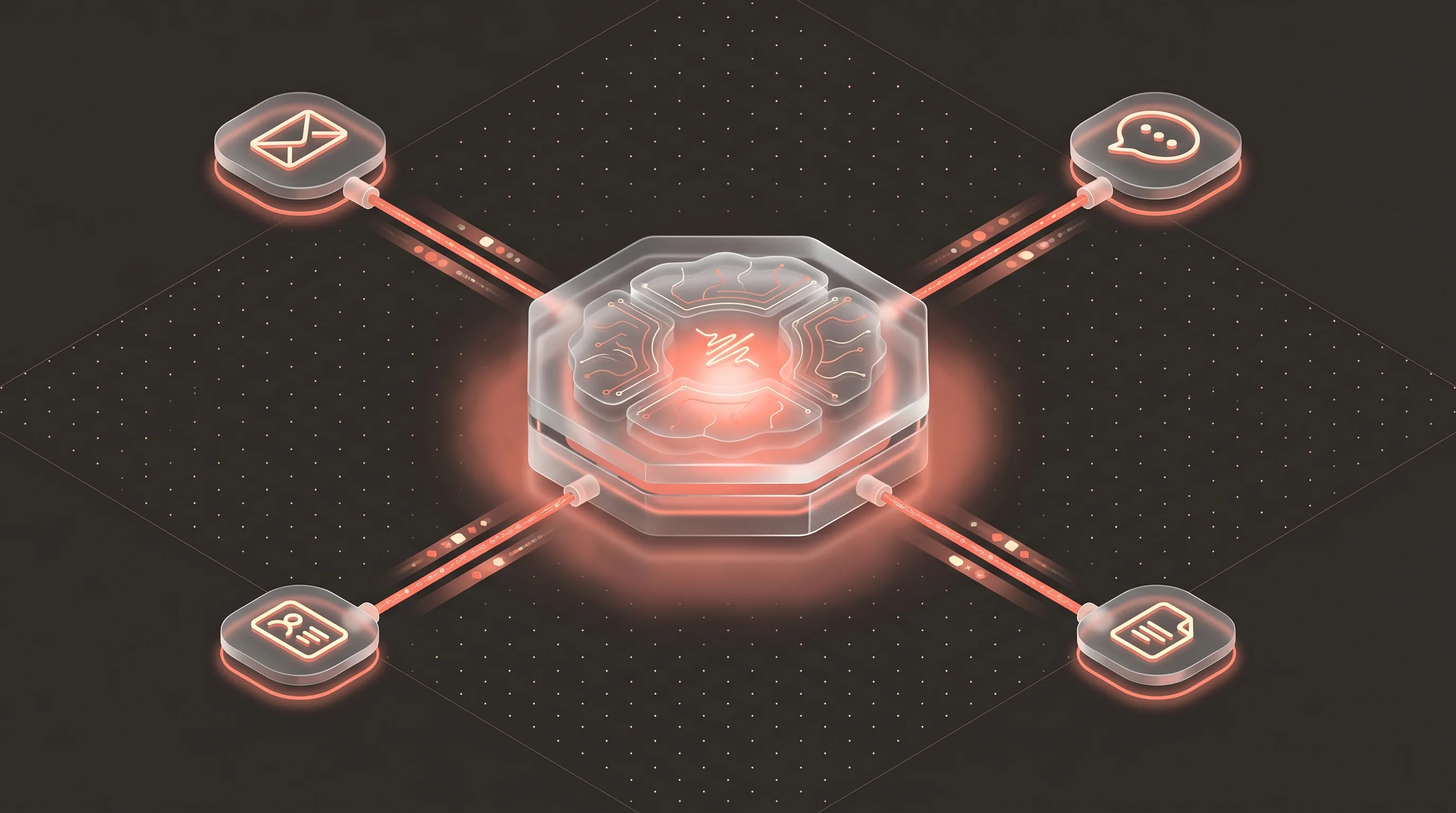
An n8n AI agent is a language model embedded in a workflow that can call tools. The model gets a goal, the memory gives it context, and the tools give it hands.
On every run the agent loops through: read the input, decide whether to call a tool, run the tool, read the output, decide again, until it has enough information to respond. This is the same reason-act-observe loop behind LangChain, AutoGPT, and the agent mode of Claude, ChatGPT, and Gemini. n8n just wraps it in a node.
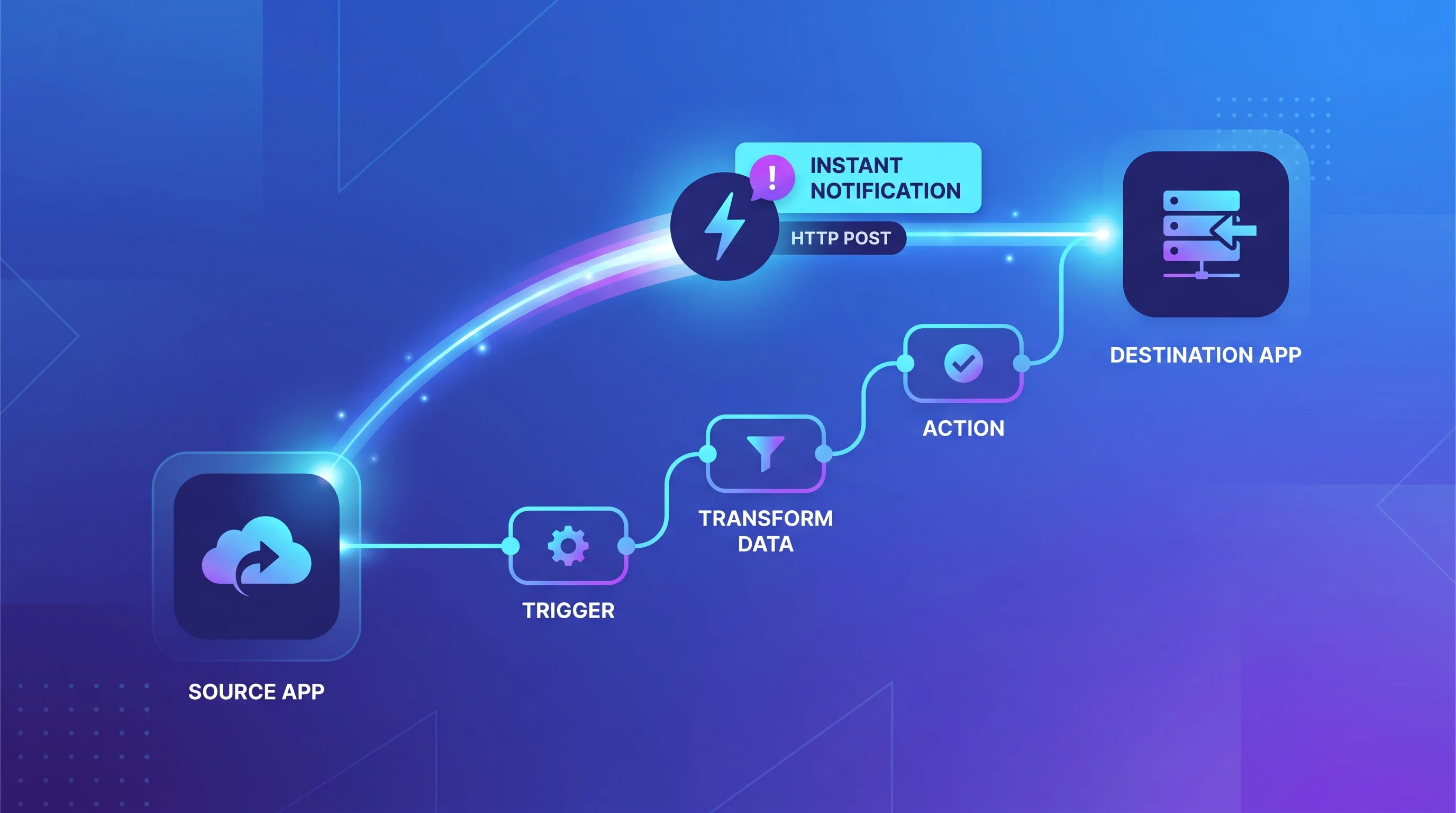
The practical win: you can wire an agent into a scheduled trigger, a webhook, a Gmail inbox, a Slack slash command, or any of n8n's 400+ integrations. The agent becomes a workflow citizen, not a separate service you have to host and monitor.
Why Build Agents in n8n (Instead of Writing Python)
I've built agents in LangChain, CrewAI, and raw OpenAI SDK calls. For automation work, n8n wins on four dimensions.
Visibility. When a client asks "what did the agent do on that ticket yesterday?", you open n8n, click the execution, and see every tool call, input, and output. In Python you're either grepping logs or you built an observability layer first.
Iteration speed. Changing a tool list in Python means editing code, running tests, redeploying. In n8n you disconnect a tool, connect a new one, save. Non-engineers on the team can do this.
Integration breadth. n8n's AI Agent node accepts any n8n node as a tool. That means the agent can call Airtable, Salesforce, HubSpot, Google Sheets, Notion, Slack, WhatsApp, Telegram, Stripe, Shopify, Supabase, Postgres, and 390-plus others without writing wrappers.
Cost predictability. The infrastructure is one n8n instance. No extra servers for LangServe, no vector DB unless you need one, no custom queue workers. For client work that matters - margins stay healthy.
Python wins when you need custom retrieval logic, deep parallelism, or an agent that ships as code inside a larger product. For everything else, start in n8n.
Prerequisites
To follow along you need:
- An n8n instance (Cloud, Railway, Render, or self-hosted - see our self-hosting guide)
- An OpenAI or Anthropic API key with at least $5 credit
- A Gmail account connected to n8n (for the triage example)
- A Slack workspace with an n8n integration (for routing notifications)
n8n version 1.20 or newer. The AI Agent node got major upgrades in 1.20, so if you're on an older release, update first.
Tutorial: Build a Smart Email Triage Agent
Here's the goal. Every incoming email gets read by an agent. The agent decides whether the email is:
- A sales lead (route to CRM, notify sales channel)
- A support request (create ticket, reply with acknowledgment)
- A partnership inquiry (forward to founder inbox)
- Noise (archive)
The agent decides. Not a regex, not a keyword matcher. A language model with access to tools.
Step 1: Create the Trigger
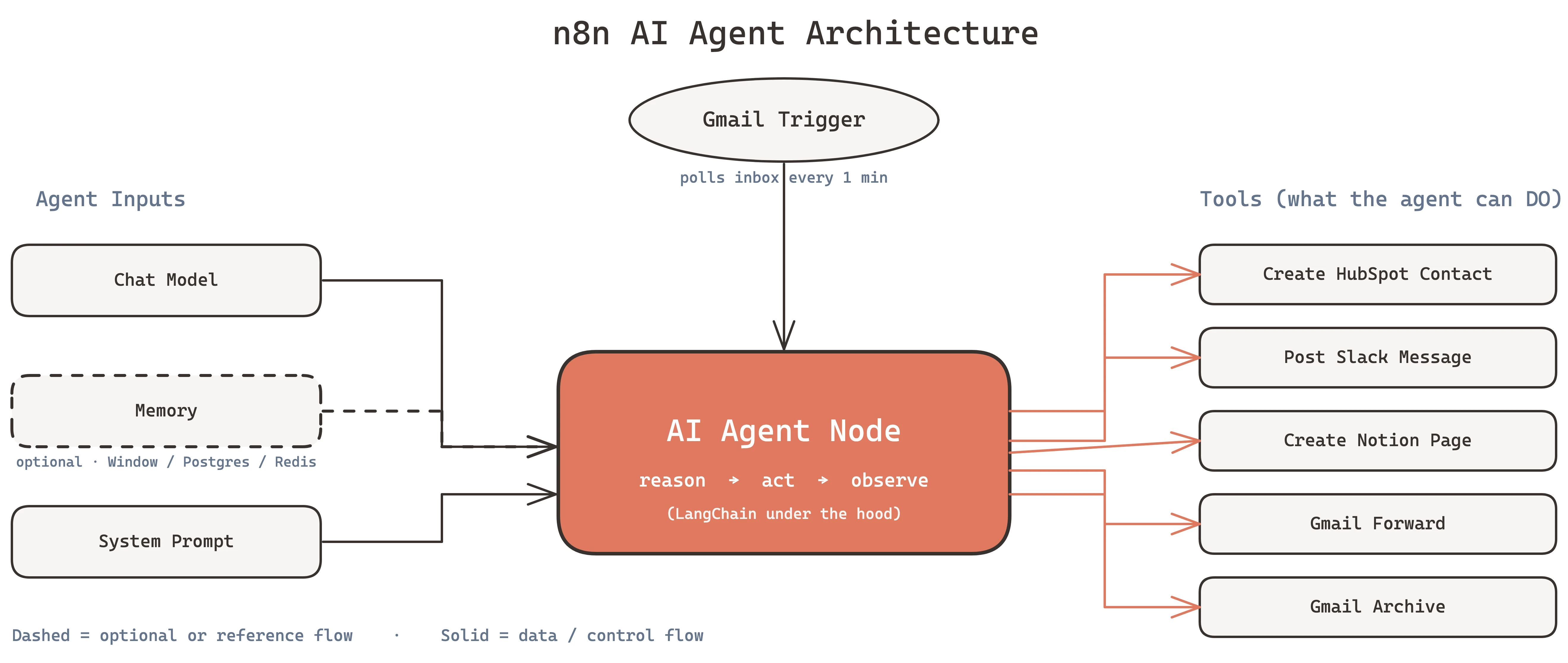
Open n8n and create a new workflow. Add a Gmail Trigger node. Configure it to poll every minute for new emails in the inbox.
Use the "Simplify" option on the trigger output - it strips out Gmail metadata you don't need and gives the agent a clean sender, subject, body object.
Step 2: Add the AI Agent Node
Search for "AI Agent" in the node panel and drop it after the Gmail trigger. The AI Agent node has four inputs you'll fill in:
- Chat Model - the language model
- Memory - optional, skip for stateless triage
- Tool - what the agent can do
- Output Parser - optional, for structured responses
Leave Memory empty. Triage is stateless - each email gets evaluated independently.
Step 3: Connect the Chat Model
Drag a "Chat Model" node and connect it to the AI Agent's Chat Model input. Pick your provider:
- Anthropic Chat Model for Claude Sonnet 4.6 (best reasoning, $3 per million input tokens)
- OpenAI Chat Model for GPT-4.1 (fast, $2 per million input tokens)
- Google Gemini Chat Model for Gemini 2.5 (cheapest at $0.30 per million input tokens, weaker tool calling)
For email triage, Claude Haiku 4.5 is the sweet spot. It's fast, cheap, and reliable on classification tasks. GPT-4.1 Mini is a close second.
Set temperature to 0.2. Low temperature keeps the classification decisions consistent.
Step 4: Add Tools
This is where the agent gets hands. Add these tools by connecting nodes to the AI Agent's Tool input:
Tool 1: Create HubSpot Contact - a HubSpot node configured to create a contact. The agent will call this when it classifies an email as a lead.
Tool 2: Post Slack Message - a Slack node that posts to
#sales-leads. The agent calls this to notify the team of a new lead.
Tool 3: Create Notion Page - a Notion node that creates a ticket in the support database. Called for support requests.
Tool 4: Gmail Forward - a Gmail node configured to forward to
[email protected]. Called for partnership inquiries.
Tool 5: Gmail Archive - a Gmail node that archives the email. Called for noise.
Each tool needs a clear name and description. The agent reads the description to decide when to call it. Write them like you're writing a job listing - what the tool does, what input it needs.
Example tool description: create_hubspot_contact: Creates a new contact in HubSpot. Use when an email is a sales lead. Requires: email address, first name (if available), company name (if available), inquiry summary.
Step 5: Write the System Prompt
Click the AI Agent node and open the System Message field. This is the agent's instruction manual.
That's it. No examples, no few-shot prompting. Modern models classify well with clear rules.
Step 6: Test With a Real Email
Hit Execute Workflow on the trigger. Send yourself a test email. Watch the execution run.
In the execution view you'll see:
- The Gmail trigger fires and outputs the email
- The AI Agent receives it
- The agent's internal thought ("This looks like a sales lead based on the inquiry about automation pricing")
- The tool call (create_hubspot_contact)
- The tool output (contact ID from HubSpot)
- The next tool call (post_slack_message)
- The final response
If the agent picks the wrong tool, read the thought trace. Usually the fix is tightening the tool description or adding one rule to the system prompt.
Step 7: Ship It
Once three or four test emails route correctly, turn the workflow on (toggle in the top right). The Gmail trigger will run every minute, and every new email gets triaged.
Log every run. Use n8n's built-in execution history, or pipe the outputs to a Google Sheet for weekly review. Catch misclassifications early.
Common Patterns Beyond Triage
The triage agent is the "hello world" of n8n agents. Here are three patterns you'll hit in real client work.
Pattern 1: RAG Over a Knowledge Base
Customer support agents need context. Wire a Supabase Vector Store or Pinecone node as a tool. The agent queries the knowledge base when a question looks like it needs product knowledge, synthesizes an answer, and either posts to Slack or drafts a reply.
This is how we built support agents for SaaS clients where the agent handles tier-1 questions and escalates tier-2+ to a human.
Pattern 2: Multi-Step Research Agent
Give an agent Tavily or Perplexity as a web search tool, plus a scratchpad (Notion or Google Docs). The agent researches a prospect - their company, their tech stack, their recent posts - then writes a personalized outreach email and drafts it in Gmail.
A single research agent can replace a junior SDR's first hour of morning prep.
Pattern 3: Batch Processor With Parallel Agents
Need to classify 10,000 leads or score 1,000 support tickets in a backlog? Trigger via Google Sheets, use Split In Batches to chunk the work, and run the AI Agent node inside the loop with a concurrency of 5. Add a queue-mode n8n setup if you're pushing more than 100 parallel executions.
We used this pattern to re-enrich a client's 40,000-lead CRM in two hours. Manual would have been two weeks.
Gotchas to Watch For
Three things that bite first-time agent builders.
Gotcha 1: The Agent Gets Stuck in a Loop
The agent calls a tool, reads the output, calls the same tool again, loops forever. Token costs spike, the execution times out.
Cause: the tool description is vague, so the agent doesn't realize it already has the answer.
Fix: set Max Iterations to 5 on the AI Agent node. Tighten the tool description to say what "done" looks like. Add to the system prompt: "Once you have called a tool and received a successful response, do not call the same tool again in the same run."
Gotcha 2: Memory Fills With Noise
On long-running chat agents, memory balloons with every message. Eventually the context window overflows and the agent starts forgetting early turns.
Fix: use Window Buffer Memory with a window size of 10-20 messages instead of the default. For long conversations, switch to Postgres Chat Memory and periodically summarize old turns into a single system-level summary.
Gotcha 3: Credentials Leak Across Clients
If you run agents for multiple clients on one n8n instance, a shared OpenAI key means you can't tell whose tokens burned what.
Fix: create separate credentials per client. In n8n Enterprise, use projects. On open-source, use naming conventions and tag each workflow with the client name.
When n8n Agents Are the Wrong Choice
Be honest about the edges. If any of these apply, build in Python or TypeScript instead:
- You need sub-second latency (agent loop adds 2-10 seconds per turn)
- You need custom retrieval with re-ranking, hybrid search, or query rewriting
- The agent ships as part of a product SDK, not an internal tool
- You need deterministic behavior for compliance or regulated workflows
- Your tool count is above 30 - agents get confused past that threshold, regardless of platform
For everything else, n8n is the 80% solution that ships in a week.
Next Steps
You have the tutorial. Here's what to do next:
-
Pick one real workflow in your business that involves reading text and taking action. Email triage, lead qualification, support routing, content moderation. Something where a human currently eyeballs input and decides a next step.
-
Build the agent version in n8n this week. Time-box it to four hours. If you can't ship it in four hours, the scope is too big - cut it down.
-
Run both systems in parallel for two weeks. Log every agent decision. Review misclassifications. Tune the prompt.
-
Cut over once the agent's accuracy crosses 90%. Keep the human-in-the-loop for edge cases.
That's the playbook we use with clients. It works because the agent isn't magic - it's a classifier with hands.
If you'd rather have us build and run the agent stack for you, that's what we do. Browse our AI automation service or book a 15-minute call and we'll map your workflow to an agent architecture on the call.
Further Reading
- Self-hosting n8n - the ultimate guide to taking control of your workflow automation
- n8n vs Make vs Zapier - which workflow automation tool is right for you
- AI agents vs automations in 2025 - understanding the difference
- Voice AI agents complete guide - everything you need to know
- Claude Code for automation agencies - how we use Claude Code internally